
If your computer has been running slower than usual, crashing unexpectedly, or behaving strangely after opening a downloaded file, you may be dealing with a file infector virus. This type of malware is one of the oldest and most persistent threats in cybersecurity — and it remains relevant today.
This guide explains exactly what a file infector virus is, how it works, how to recognize it, and what you can do to remove and prevent it.
What Is a File Infector Virus?
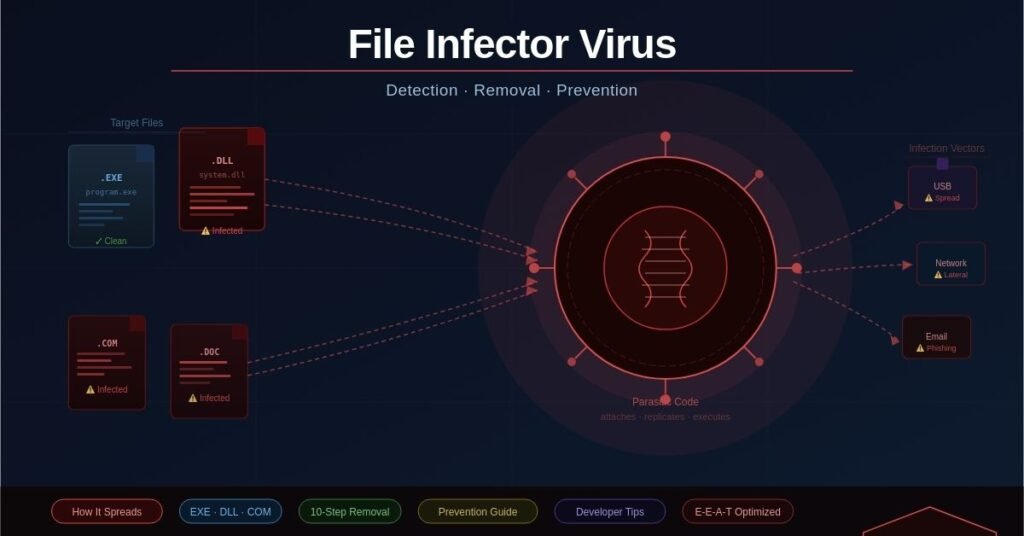
A file infector virus is a type of malicious software that attaches itself to executable files — programs your computer runs — and uses them to spread. Think of it like a biological parasite: it cannot survive on its own. It needs a host.
When you run an infected program, the virus activates. It then looks for other executable files on your system and infects those too. This cycle repeats quietly in the background, often without any obvious signs at first.
What Files Does It Target?
File infector viruses most commonly target:
- .exe files — standard Windows application files
- .com files — older executable format, still used in system tools
- .dll files — shared libraries used by multiple programs
- .sys and .drv files — system and driver files
- Office documents with macros — Word and Excel files that contain automated scripts
Pure data files like images (.jpg, .png) or music (.mp3) cannot carry a traditional file infector virus. However, files that contain executable code — including some PDFs and Office documents — can be used as carriers.
How Does a File Infector Virus Work?
Understanding the mechanics helps you appreciate why this threat is difficult to contain once it takes hold.
The Four-Stage Lifecycle
1. Dormant The virus is present on the system but not yet active. It may sit inside a downloaded file for days or weeks before being executed.
2. Propagation Once the infected file is opened, the virus begins copying itself into other executable files stored on your computer, connected USB drives, or shared network folders.
3. Triggering Many file infectors are programmed to wait for a specific condition before causing visible damage — a particular date, a number of infections reached, or a user action.
4. Execution (Payload) The virus delivers its intended damage: corrupting files, stealing credentials, opening backdoors, or simply consuming system resources.
Resident vs. Non-Resident Viruses
Some file infectors are memory-resident, meaning they load into RAM and remain active even after the original infected program is closed. Others are non-resident (direct action) — they activate, infect nearby files, and then go quiet again. Memory-resident variants are generally more dangerous because they spread faster and are harder to isolate.
Common Types of File Infector Viruses
Not all file infectors behave the same way. Here are the main variants you should know about.
Macro Viruses
These target Microsoft Office documents — particularly Word and Excel files — by embedding malicious macros (automated scripts). When you open the document and enable macros, the virus runs. Macro viruses spread rapidly through email attachments, making them a favorite tool for phishing campaigns.
Microsoft’s official guidance recommends keeping macros disabled by default, especially for files received from unknown sources.
Overwrite Viruses
These viruses replace the original file content with their own code. The infected file stops working entirely, making the infection immediately obvious — but also making recovery difficult, since the original data is destroyed.
Cavity (Space-Filler) Viruses
These are more sophisticated. Instead of appending or replacing code, cavity viruses insert themselves into empty sections within an executable file. The file size stays the same, making them harder to detect with basic scanning tools.
Companion Viruses
A companion virus creates a new file with the same name as a legitimate program but a different file extension. When your system runs the file, it executes the malicious companion instead of — or before — the real program.
How Do File Infector Viruses Spread?
Understanding how infection happens is the first step toward preventing it.
The Most Common Infection Methods
- Email attachments — Phishing emails carrying infected .exe files or macro-enabled Office documents remain the most common delivery method.
- USB drives and removable media — Plugging in an infected USB stick can automatically spread a resident virus to your system.
- Cracked software and torrents — Pirated software is one of the highest-risk sources of file infectors. Attackers deliberately bundle malware inside popular software cracks.
- Compromised websites and malvertising — Visiting a hacked site or clicking a malicious ad can trigger a drive-by download of infected files.
- Network shares — In office environments, a single infected machine can spread a file infector to every shared folder accessible on the network.
10 Warning Signs Your System May Be Infected
Recognizing the symptoms early can significantly limit the damage. Watch for these signs:
- Your computer is noticeably slower than usual
- Programs crash or freeze without explanation
- Files become corrupted or disappear entirely
- File sizes change unexpectedly
- Your antivirus software gets disabled or won’t update
- Unfamiliar programs appear in your startup list
- Your browser redirects you to unknown websites
- Pop-up ads appear even when no browser is open
- Your hard drive shows unusual activity when idle
- Friends report receiving strange emails from your address
If you notice more than two or three of these signs together, run a full system scan immediately.
How to Remove a File Infector Virus: Step-by-Step
Acting quickly and methodically gives you the best chance of full recovery.
Step 1: Disconnect from the Internet
Cutting your internet connection prevents the virus from communicating with remote servers or spreading to other devices on your network.
Step 2: Boot into Safe Mode
Restart your PC in Safe Mode (press F8 during startup on Windows). This loads only essential system processes, preventing the virus from running automatically in the background.
Step 3: Update Your Antivirus Software
Before scanning, ensure your antivirus definitions are fully up to date. An outdated scanner may miss newer variants. If you cannot update in Safe Mode, update before disconnecting from the internet.
Step 4: Run a Full System Scan
Use your primary antivirus tool to perform a complete — not quick — system scan. This checks every file, including those in temporary folders and compressed archives.
Step 5: Use a Second-Opinion Scanner
Tools like Malwarebytes or HitmanPro are designed to catch what traditional antivirus software misses. Running a second scanner significantly increases your detection rate.
Step 6: Quarantine or Delete Infected Files
Follow your antivirus tool’s recommendations. Quarantine suspicious files first — do not permanently delete them until you are certain they are not legitimate system files.
Step 7: Clear Temporary Files
Use Windows Disk Cleanup or a tool like CCleaner to remove temporary files. Many viruses hide in temp folders and reinstate themselves from there.
Step 8: Check Startup Programs and Scheduled Tasks
Open Task Manager > Startup tab and look for anything unfamiliar. Also check Windows Task Scheduler for suspicious entries the virus may have created.
Step 9: Restore from a Clean Backup
If critical files are corrupted beyond repair, restore them from a backup made before the infection. This is why regular, offline backups are essential.
Step 10: Reinstall the OS if Necessary
In severe cases — particularly when system files are compromised — a clean OS reinstall is the most reliable path to full recovery. Back up personal data first if at all possible.
How to Prevent File Infector Viruses
Prevention is far easier than recovery. Build these habits into your regular routine.
Essential Security Practices
- Keep your operating system and software updated. Most file infectors exploit known vulnerabilities that security patches already fix.
- Use reputable antivirus software with real-time protection. Tools like Microsoft Defender, Bitdefender, or Kaspersky provide continuous monitoring.
- Disable Office macros by default. Only enable macros in documents from sources you completely trust.
- Download software from official sources only. Avoid third-party download sites, torrents, and cracked software at all costs.
- Scan all email attachments before opening them — even if the sender appears to be someone you know.
- Use a standard (non-administrator) account for everyday computing. This limits the damage a virus can do if it does execute.
- Regularly back up your data to an offline or cloud-based location.
Why Developers and IT Professionals Need to Pay Attention
File infectors are not just a consumer problem. In enterprise and development environments, the stakes are considerably higher.
Supply Chain and CI/CD Risks
A file infector that compromises a developer’s machine can potentially infect build tools, code repositories, or compiled software packages before they are distributed to end users. This is known as a software supply chain attack, and it has become one of the most serious threats in modern cybersecurity.
Best Practices for Developers
- Sign your code using trusted certificates to verify integrity
- Verify checksums of any third-party dependencies before including them in a build
- Scan your development environment regularly with up-to-date tools
- Audit CI/CD pipeline permissions to limit what automated systems can access or execute
Frequently Asked Questions
What is the difference between a file infector virus and a worm?
A file infector needs a host file to spread — it cannot move on its own. A worm is self-contained and spreads across networks without needing to attach to another file.
Can a file infector virus spread through a network?
Yes. If a memory-resident file infector is active, it can infect files stored on shared network drives accessible from the infected machine.
Does factory resetting my PC remove a file infector virus?
A full factory reset that reinstalls the operating system will typically remove the virus. However, if the virus has infected files on a backup drive that you restore afterwards, it can reappear.
Are Macs immune to file infector viruses?
No. While macOS is less frequently targeted than Windows, file infectors targeting Mac executables do exist. Maintaining antivirus protection on any operating system is good practice.
What should I do if my antivirus keeps detecting the same infected file?
This usually means the virus is reinstating itself from another location. Boot into Safe Mode, run multiple scanners, and check startup programs and scheduled tasks for the source of reinfection.
Key Takeaways
A file infector virus is a parasitic form of malware that embeds itself in executable files and spreads each time an infected program runs. It is one of the most resilient categories of malware precisely because it hides inside legitimate software.
The good news: it is both preventable and removable. Keeping your software updated, using trusted security tools, practicing safe download habits, and maintaining regular backups will protect the vast majority of users from ever encountering a serious infection.
If you suspect your system is already compromised, act immediately — the longer a file infector runs unchecked, the more damage it causes and the harder it becomes to contain.

George is a digital growth strategist and the driving force behind Business Ranker, a platform dedicated to helping businesses improve their online visibility and search engine rankings. With a strong understanding of SEO, content strategy, and data-driven marketing, George works closely with brands to turn traffic into real, measurable growth.